How to update days worked for an employee for accurate payroll processing?
If you are in Step 1 of payroll processing, follow these steps:
- In the step 1- Not started, under Attendance click on the Incomplete icon **
 **corresponding to the employee name.
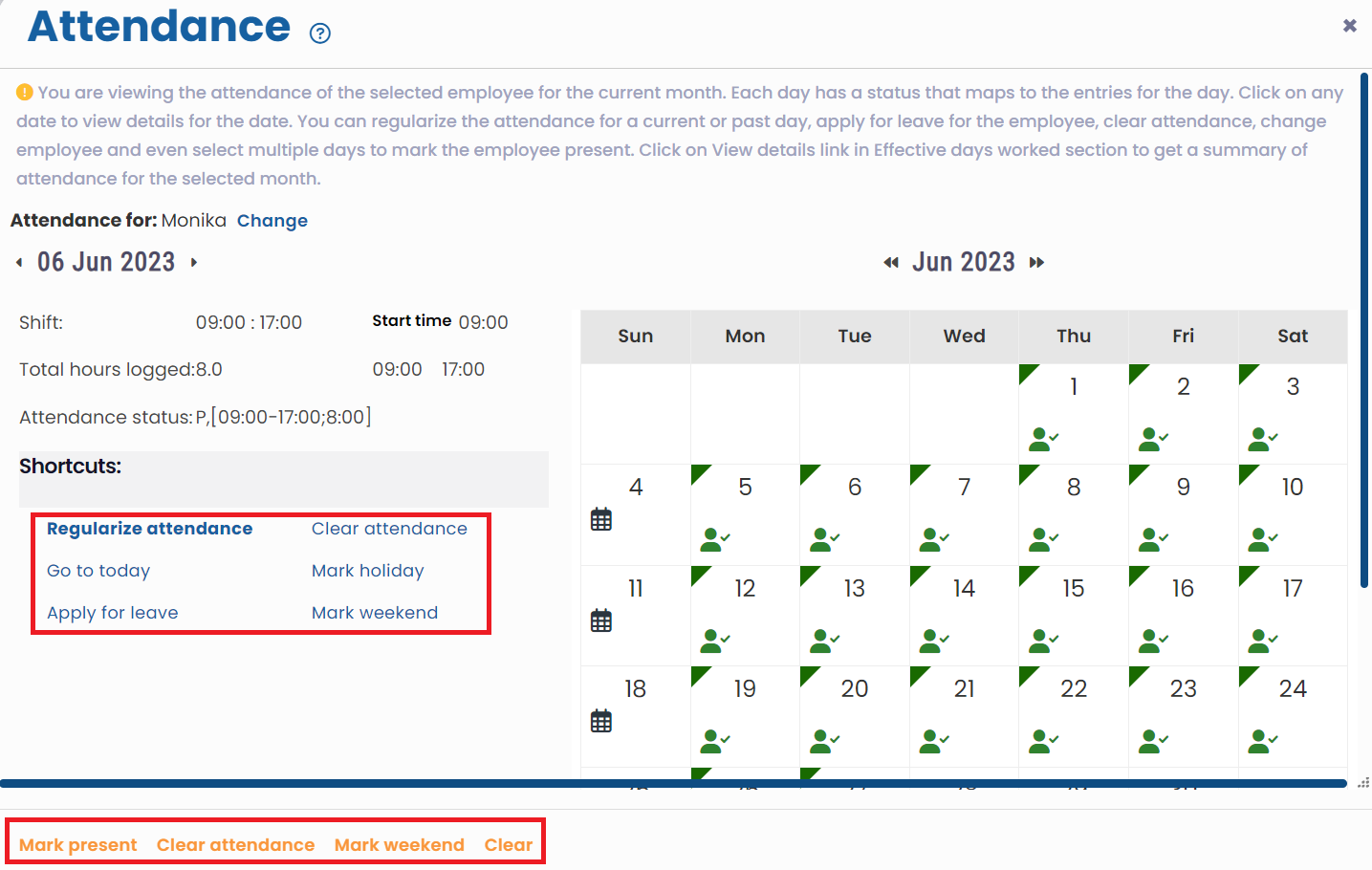
 - In the Attendance calendar, you can select multiple dates (CTRL + left click ) and mark that employee as present, absent, mark weekend, or clear attendance. You can also regularize attendance for one day at a time.
Once attendance changes are made, refresh the application and process payroll for that employee.
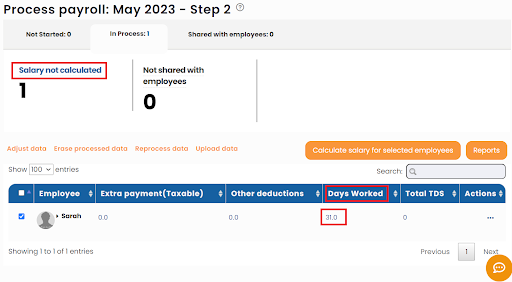
If you are in Step 2 - In process - Salary not calculated, then click on the value given corresponding to Days worked. Make adjustments and reprocess the salary. Refer to the image below.