How to create employee groups in empxtrack?
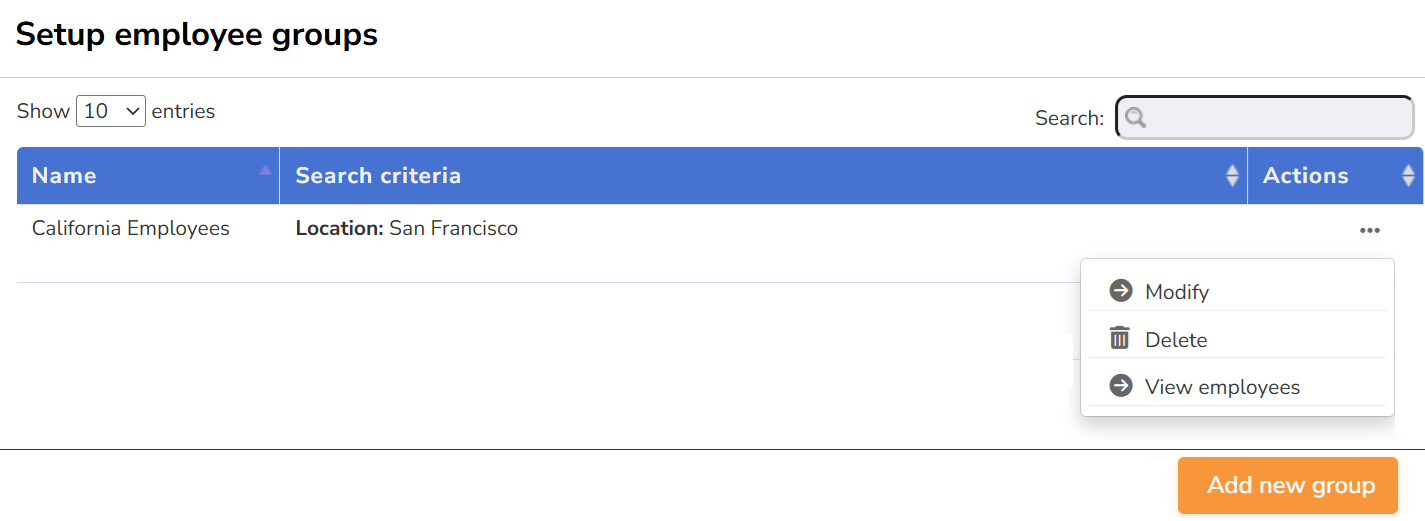
It takes only a few minutes to create employee groups in empxtrack. This helps in categorizing employees based on various criteria such as department, job role, location, or seniority. Follow the steps to create a group:
-
Go to Product configurations >> General settings >> Setup employee groups.
-
Click Add new group.
-
Specify a unique name of the group.
-
Apply search criteria by selecting the suitable options for all the fields.
-
Add and exclude employees in the fields. The employees added or excluded in the field will be shown or not shown accordingly.
-
Click Confirm to create the group.
Once the group is created, you can modify, delete or view employees included in that group.