I have processed payroll for the month of May. Now I want to regularize attendance for two of my employees for the same month. How to do it?
If the payroll is already processed for a specific month, you won’t be able to regularize the attendance for that month.
Hence, it is suggested to regularize the attendance beforehand or update the Days worked while calculating the salaries.
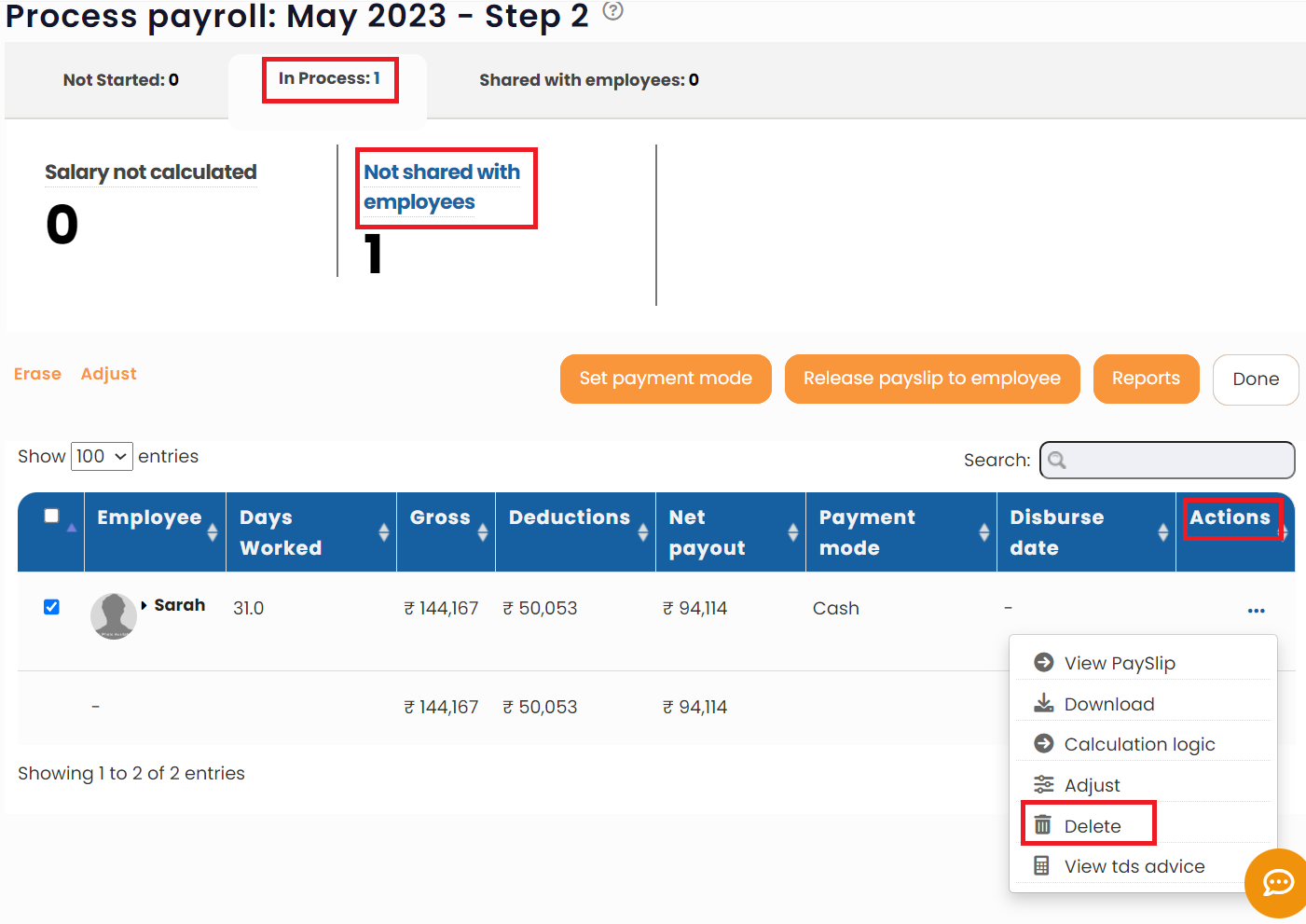
However, considering your situation you can Delete the payroll by clicking on the Actions icon corresponding to employee names whose attendance you want to regularize.
Now complete attendance regularization for both your employees and process their payroll again.
Regularize their attendance and again process payroll for those employees.
You may follow this path on the application:
- On the Payroll dashboard, go to step 2 and click on Not shared with employees.
- Now under Actions, click Delete corresponding to employee names whose attendance you want to regularize.
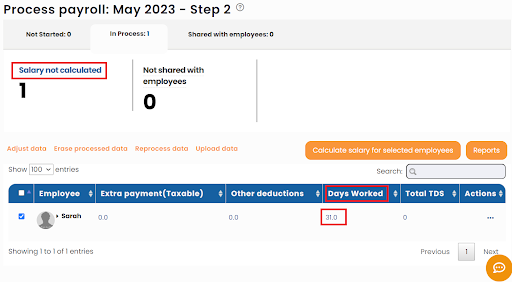
- Once the payroll is deleted, the employee names would show under the Salary not calculated tab.
- Click on Days worked, select the specific dates, and regularize attendance.
- Once attendance is updated, go to the Payroll dashboard page and process payroll for the specific employees again.